How to Create a Nutrition Label from Scratch
Create a label without running a full recipe analysis—useful for pre-measured products, branded items, or when you already know the nutrition data.
Create and configure a new label
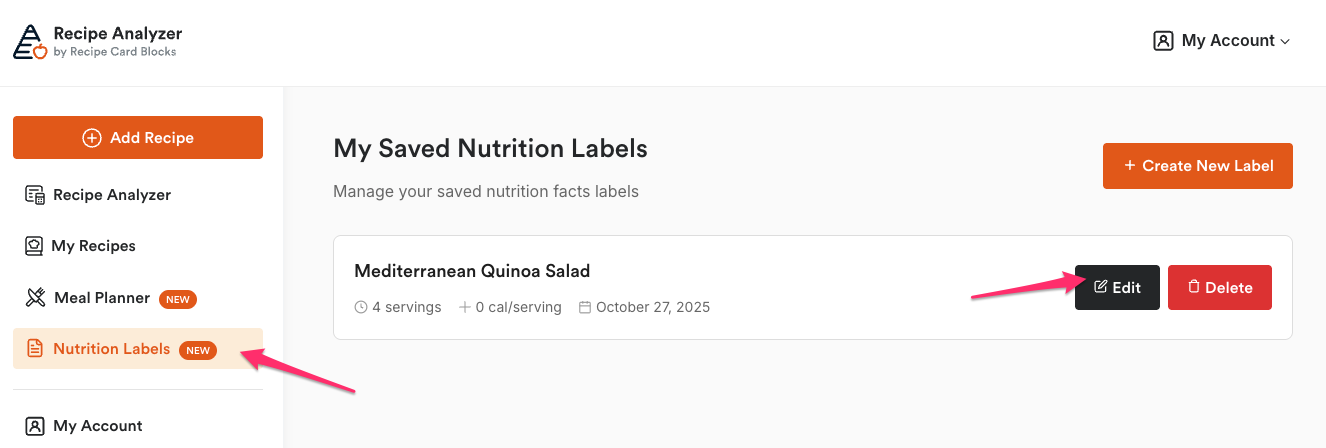
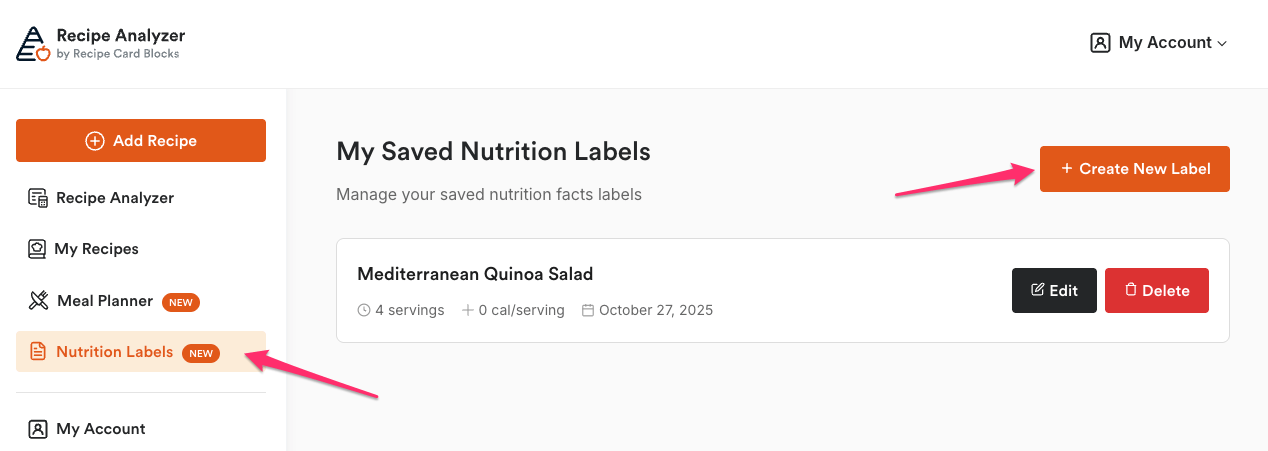
- Go to My Account → Nutrition Labels.
- Click Create New Label.
- Add a title to your nutrition label.
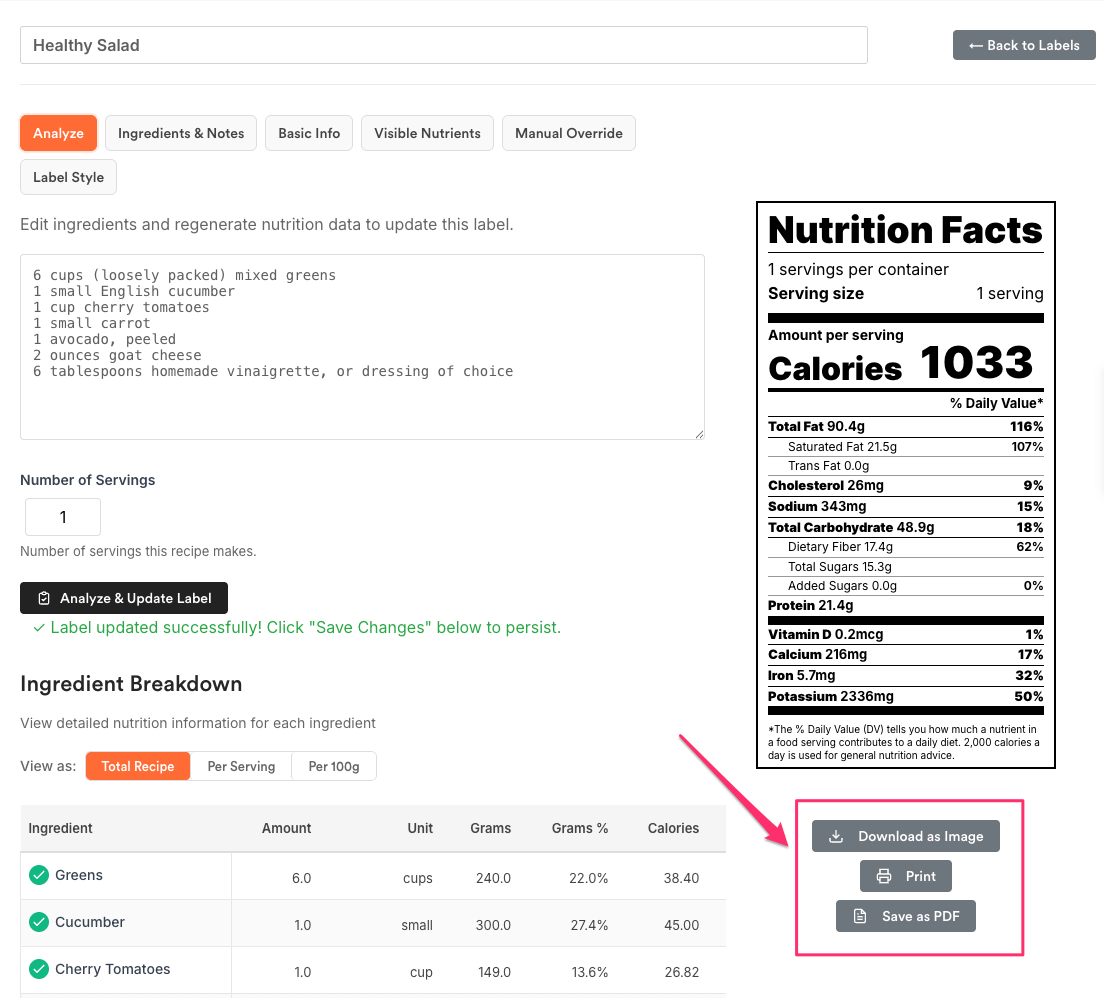
You’ll see a preview on the right and six sections (tabs) to configure the label on the left.
Configure each section:
- Analyze
Paste ingredients and click Analyze & Update Label if you want the tool to estimate nutrition. You can also set Number of Servings here for the label math.
After analysis, the Ingredient Breakdown table appears below with a per-ingredient summary.
You can also toggle the view to Total Recipe / Per Serving / Per 100g.

- Ingredients & Notes
Toggle Show Ingredients and Contains sections if you want these below the label.
Add Label Notes (Business Information) like business name or extra text that should appear beneath the label.

- Basic Info
Define the headline details:
- Serving Size (e.g., “1 serving”).
- Serving Weight/Volume (e.g., “200 g”).
- Calories (overrides the preview’s calories if you know the exact value).

- Visible Nutrients
Choose which nutrients appear on the label. FDA-required ones are on by default; enable/disable others (vitamins, minerals) for a cleaner layout.

- Manual Override
Enter exact values for Fats, Other Nutrients, Carbohydrates, Protein, and Vitamins & Minerals if you need full control.

- Label Style
Select the Label Format to match your preferred presentation.

Save and export
Click Create Label or Save Changes when editing to store it.
From the right side of the page, use:
- Download as Image
- Save as PDF
Edit or download a label later
Open My Account → Nutrition Labels, find the label, click Edit, make any adjustments, then Download as Image, Print, or Save as PDF from the right panel.