
How to Save Recipes
You can save any analyzed recipe to your account so you can return later to view, edit, re-analyze, or print it.
Save a recipe after analysis
- Analyze a recipe using any method (Enter Ingredients, Search, URL, or Image).
- On the results page, click Save This Recipe (above the Health Score).

When prompted:
- Create new account → enter email + password → Register.
- Log in → enter your credentials → Log In.

After authentication, choose how to store your recent analyses:
- Yes, Save to my account — recipes are saved to your account and available on any device.
- No Thanks, Keep in Browser — recipes remain in local browser storage only.

Note: If you choose Keep in Browser, clearing your browser storage/cookies may remove unsaved recipes.
When you’re logged in and click Save Recipe
A Save Recipe panel opens where you can optionally adjust details like Title, Category, Servings, Prep Time, Cooking Time, Tags.

Editing these fields is optional—if you don’t need changes, just click Save Recipe.
Cancel returns you to the results without saving.
Save from Recent History (when logged in)
- While analyzing recipes, open Recent History (panel with your last analyses).
- Click the bookmark icon next to the recipe you want to keep.
- The recipe is added to Saved Recipes (see how to access below).

Where to find your saved recipes
- Click View Saved Recipes in the Recent History section, or
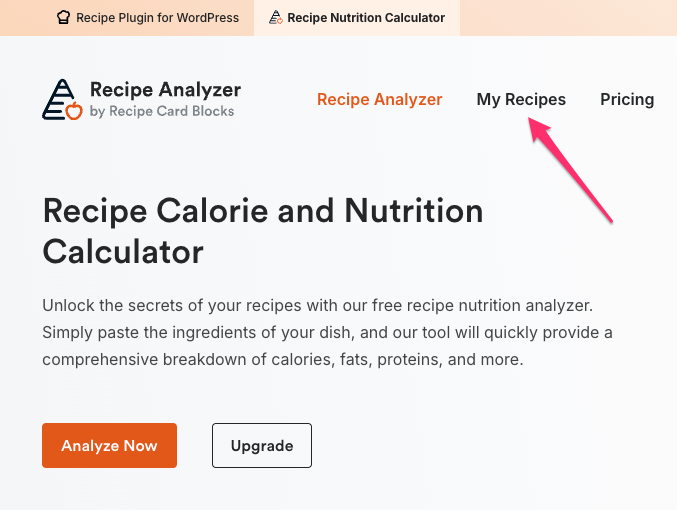
- Open My Recipes from the main menu of the website, or
- Click View Saved Recipes in the top-right corner of the analyzer (alongside Add Recipe).
Tips
- Save to your account to sync across devices and ensure you don’t lose work.
- You can re-analyze at any time if you change servings or ingredients.